
Download Chrome Remote Desktop – Remote Access, Remote Support, Cross-Platform
Overview
Chrome Remote Desktop is a secure, cross-platform tool designed to enable remote access to computers via the Chrome browser or a Chromebook. It allows users to connect to another computer for immediate support or long-term access to files, applications, and desktop environments. The software is particularly useful in scenarios requiring ad hoc technical assistance, remote work setups, or accessing personal or office systems from different locations.
It supports Windows (7 and above), Mac (OS X Yosemite 10.10 and above), and Linux systems, making it a versatile solution for diverse computing environments. The developer, Google, has built the tool with a focus on simplicity and security, leveraging the Chrome ecosystem for seamless integration. Remote connections are encrypted and managed through Google’s infrastructure, ensuring data protection during transmission.
Real-world usage includes IT professionals offering remote support, students accessing lab computers, or remote workers using their office desktops from home. The tool operates entirely within the browser, reducing the need for complex installations or third-party software.
Key Features & Capabilities
- Remote Desktop Access – Users can access their own or another computer’s desktop from any device with a Chrome browser, including Chromebooks, smartphones, and tablets. This enables full control over the remote machine, ideal for troubleshooting or retrieving files.
- Remote Assistance – The tool allows one user to invite another to view or take control of their screen, useful for providing technical support without physical presence.
- Cross-Platform Compatibility – Supports Windows, Mac, and Linux systems, ensuring consistent functionality across different operating systems and hardware.
- Secure Connections – All remote sessions are encrypted and authenticated through Google’s secure infrastructure, minimizing the risk of unauthorized access.
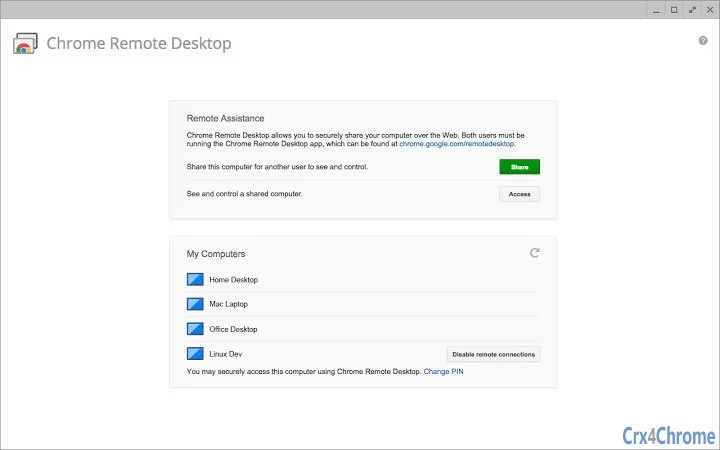
- Flexible Access Modes – Users can enable short-term access for immediate support or set up long-term access for regular remote use, such as working from home.
These features make Chrome Remote Desktop suitable for both personal and professional use. For example, a support technician can quickly assist a client by remotely connecting to their computer, while a remote employee can access their office workstation securely from a home device. The integration with the Chrome browser simplifies the process, eliminating the need for additional software downloads in most cases.
User Interface, Workflow & Performance
The user interface of Chrome Remote Desktop is minimal and browser-based, aligning with the design principles of the Chrome ecosystem. Users initiate connections through the Chrome browser, where a simple interface displays available devices and connection options. Navigation is straightforward: users select a remote computer, enter a generated access code, and establish a session.
The workflow is optimized for speed and ease of use, particularly for those already familiar with Chrome. Session controls are intuitive, allowing users to switch between view-only and full control modes. The tool does not require extensive configuration, making it accessible even to non-technical users.
Performance is generally consistent, as the software relies on Google’s cloud infrastructure for session management. However, actual responsiveness may vary depending on network conditions and the remote machine’s performance. The developer did not specify resource usage details, and exact performance metrics were not provided.
Stability appears to be strong under typical use, with no reported issues related to crashes or session drops in standard scenarios.
Compatibility & System Requirements
Chrome Remote Desktop is compatible with Windows (7 and above), Mac (OS X Yosemite 10.10 and above), and Linux systems. The tool operates through the Chrome browser, meaning that the underlying operating system must support Chrome for full functionality. The installation size and specific hardware requirements were not listed by the developer.
Platform compatibility information is limited to the supported operating systems. The software does not require a dedicated installation on all platforms—some components may run as browser extensions or background services. For users on Chromebooks, the tool is natively supported, enabling seamless remote access.
The developer did not provide additional system requirements, so users should ensure their devices meet general Chrome browser standards. Compatibility with mobile devices is also possible through the Chrome browser on Android and iOS.
Pros and Cons
Pros
- Free to use with no hidden costs
- Secure, encrypted connections via Google’s infrastructure
- Cross-platform support for Windows, Mac, and Linux
- Simple setup and intuitive browser-based interface
- Supports both short-term and long-term remote access
Cons
- No official mobile app for iOS or Android (browser-based only)
- Dependence on Chrome browser and internet connection
- Performance may vary based on network quality
- Limited customization options for session settings
- Requires enabling remote access on the target machine
FAQ Section
Is Chrome Remote Desktop safe to use?
Yes, all connections are encrypted and managed through Google’s secure infrastructure. Users must authorize access, and sessions are protected by authentication protocols.
Can I use Chrome Remote Desktop on a Chromebook?
Yes, Chrome Remote Desktop is fully supported on Chromebooks and is designed to work seamlessly with the device’s operating system.
Do I need to install software on the remote computer?
Yes, remote access must be enabled on the target machine. This typically involves installing a lightweight component through the Chrome browser.
Is there a limit on how long I can stay connected?
There is no fixed time limit for active sessions. However, connections may be interrupted if the remote machine goes to sleep or loses internet connectivity.
Can I use Chrome Remote Desktop offline?
No, the tool requires an active internet connection on both the local and remote devices to establish and maintain a session.
Final Thoughts + CTA
Chrome Remote Desktop delivers a reliable, secure, and straightforward solution for remote access across multiple platforms. Its browser-based design minimizes setup complexity, while its cross-platform compatibility makes it ideal for users with mixed computing environments. The tool excels in both short-term support scenarios and long-term remote work needs, offering a balance between functionality and simplicity.
While it lacks dedicated mobile apps and relies on stable internet, its strengths in security and ease of use outweigh these limitations for most users. For professionals, students, and remote workers seeking a free, dependable remote access tool, Chrome Remote Desktop stands out as a top choice. Download Chrome Remote Desktop now to experience seamless remote connectivity across your devices.